


Instructions for Use
Applicable to: Gate iOS / Android
Preparation Before Operation: Make sure your phone’s operating system meets the minimum requirements for the app. For iOS, have your Apple ID ready. For Android, enable the "Allow installation of apps from unknown sources" permission.
Estimated Time Required: 3-5 minutes
Objective
This guide will walk you through how to download and install the Gate App on your iOS or Android device.
Steps
Download and Install for iOS
Step 1: Sign in to Apple ID
- Open the App Store app on your phone.
- Tap the "avatar" icon in the upper right corner to access your personal account page.
- Enter your Apple ID and password (please use a non-mainland China Apple ID).
- Tap the "Sign In" button below.
Step 2: Search and Download Gate App
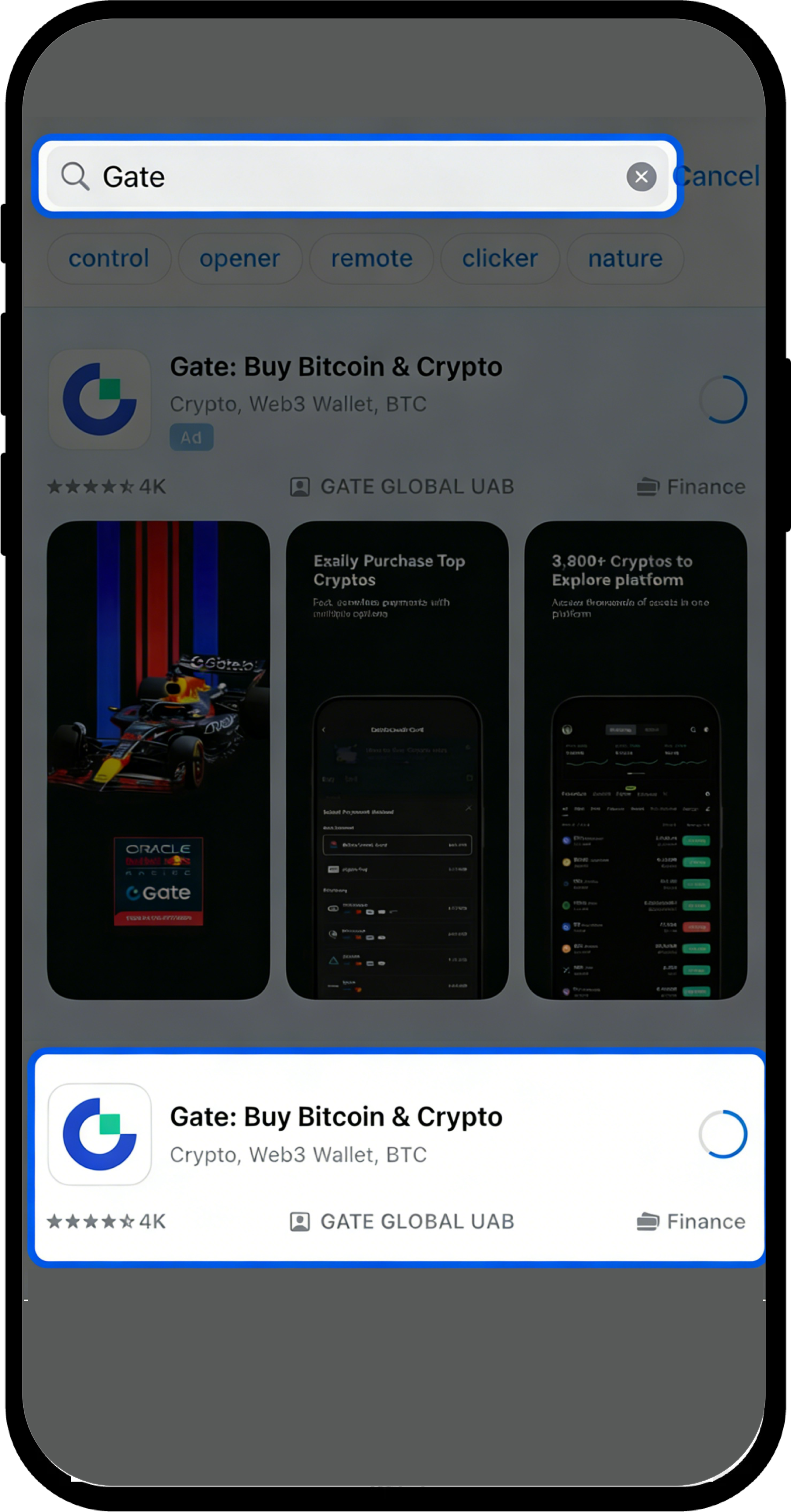
- Enter "Gate" in the search bar at the top of the App Store.
- Find the "Gate" app in the search results.
- Tap the download icon (cloud or "Get" button) next to the app.
- Wait for the download and installation to complete.
Step 3: Update App Version (Optional)
To update Gate App to the latest version:
- Open the App Store and search for "Gate".
- If an "Update" button appears, tap it to upgrade.
- If you can't update directly, try uninstalling the app and reinstalling it.
Download and Install for Android
Step 1: Visit the Download Page
- Open your phone’s browser.
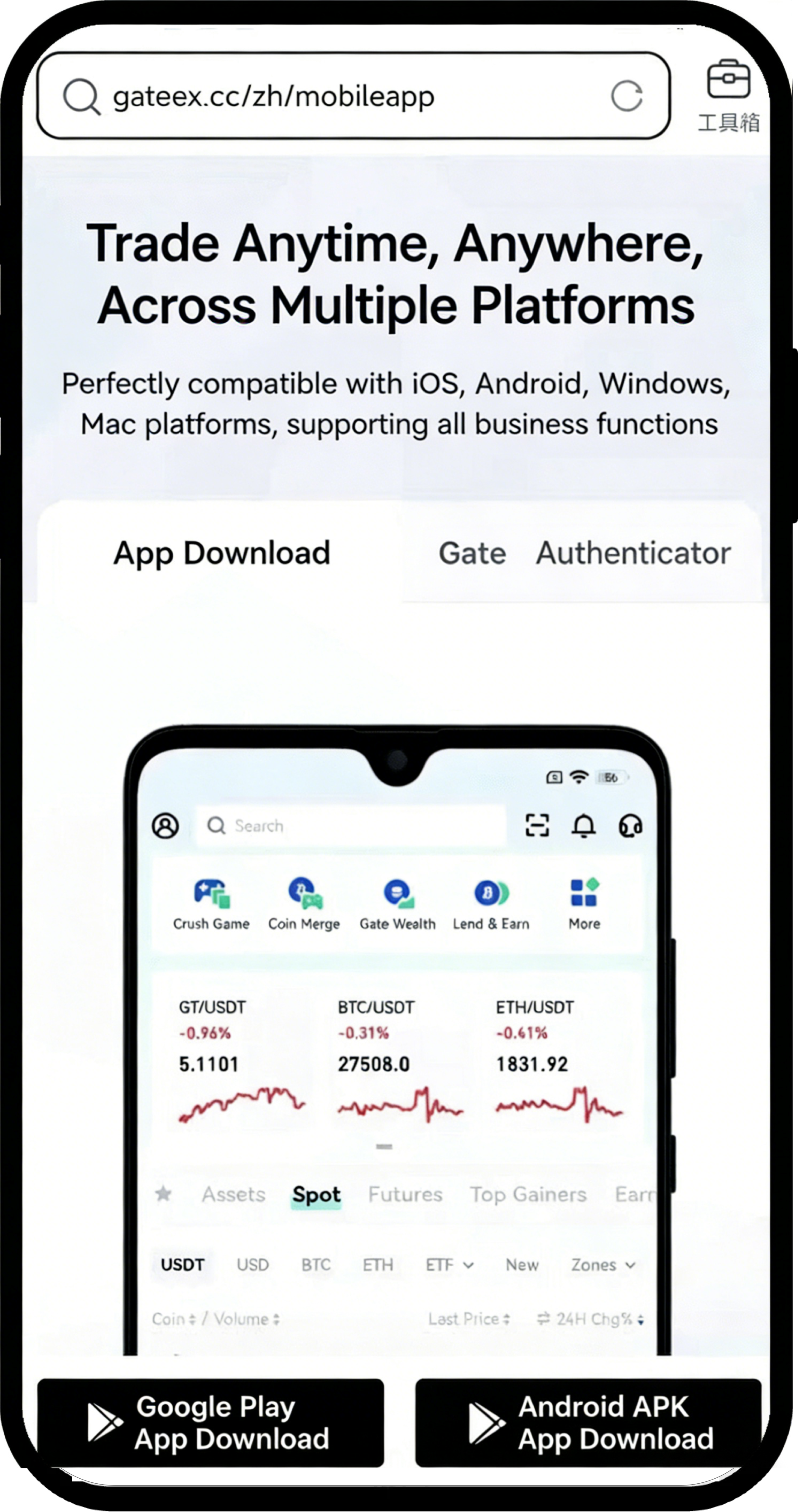
- Enter the following link in the address bar:
https://www.gate.com/zh/mobileapp - Once on the download page, tap "Android APK App Download".
Step 2: Download the Installation Package
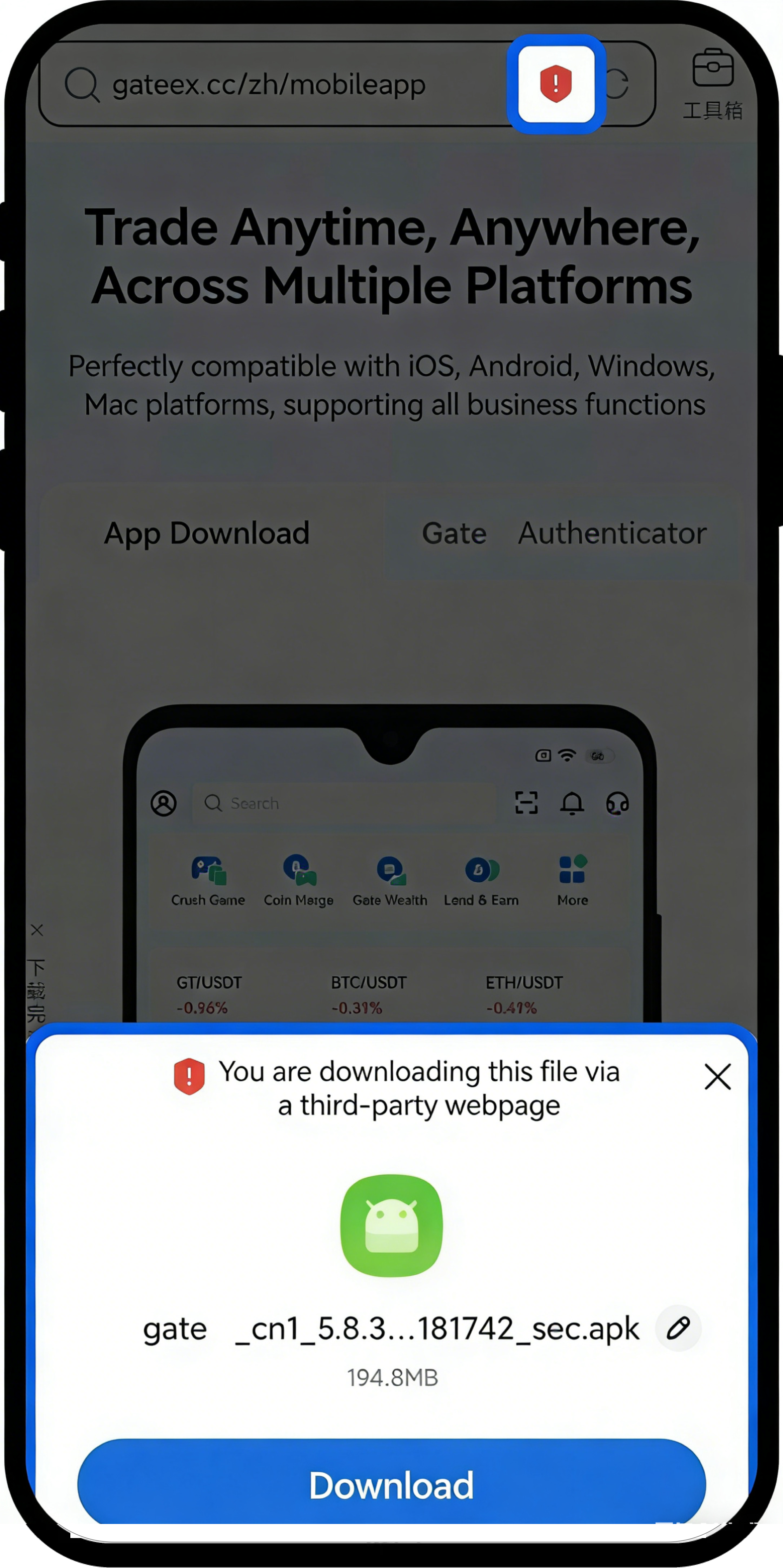
- Tap the "Download" button.
- Wait for the APK file to finish downloading.
Step 3: Install the App
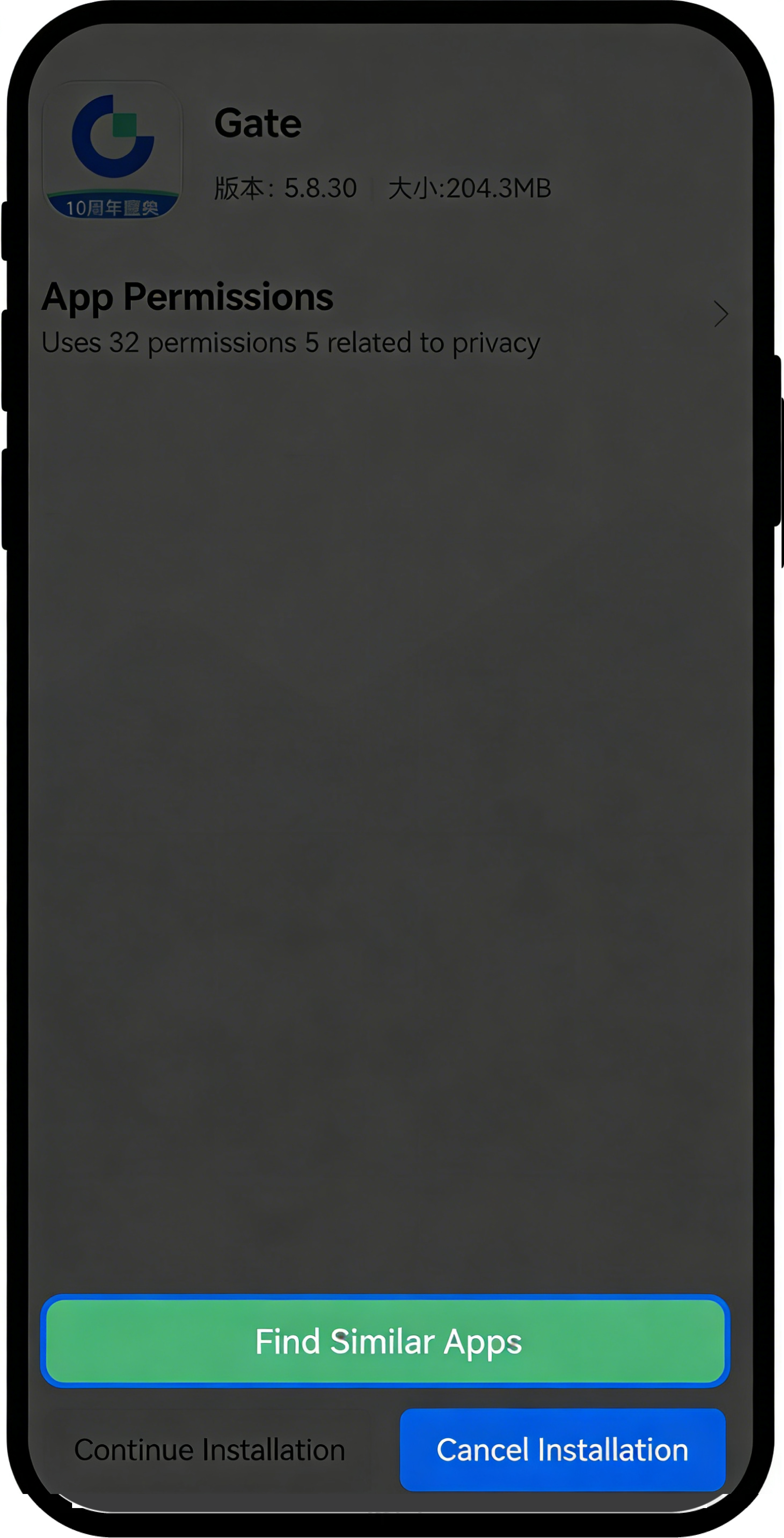
- After the download is complete, tap the installation prompt.
- On the pop-up screen, tap "Continue Installation".
- Wait for the installation process to finish.
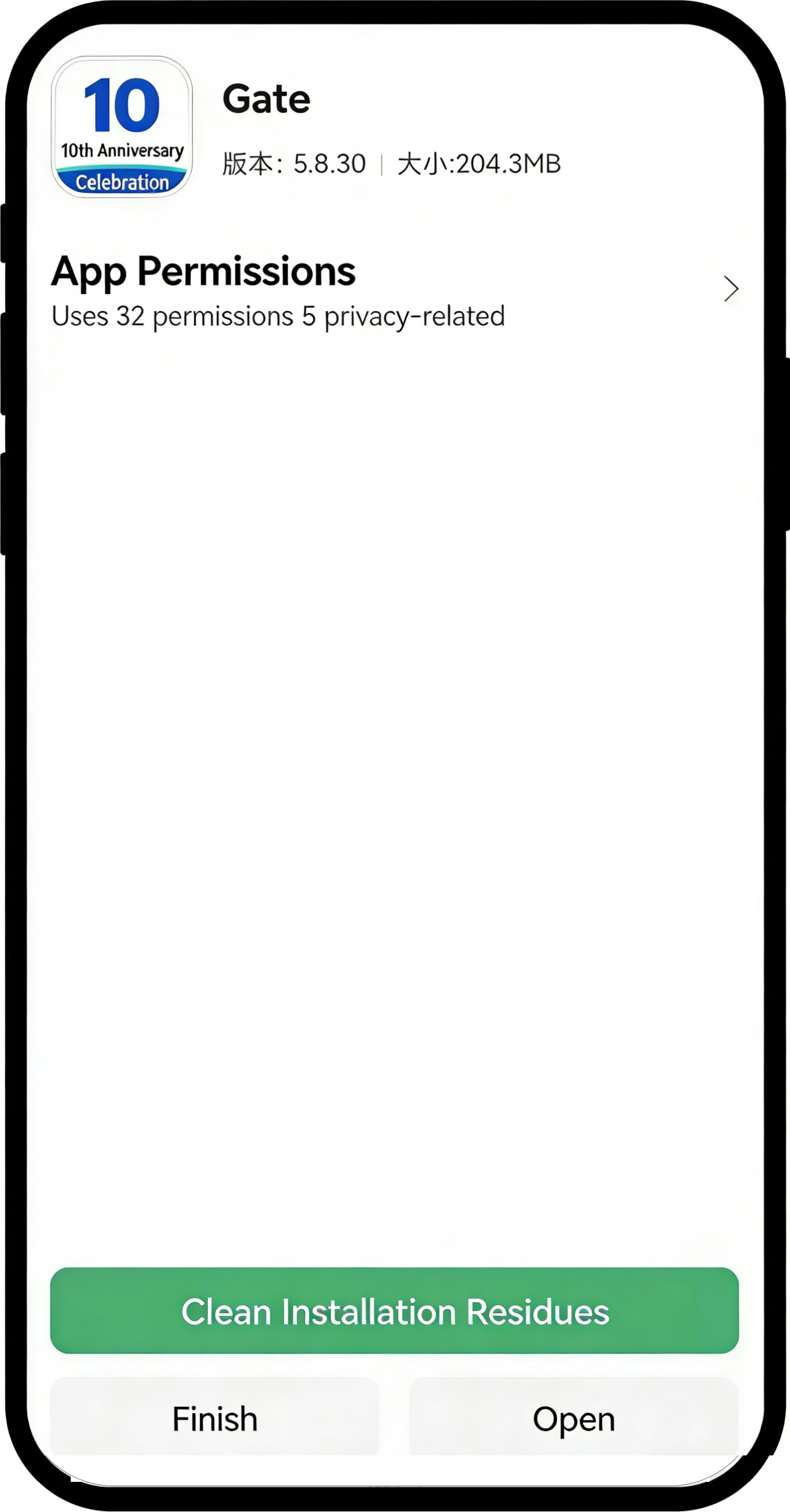
Step 4: Open the App
- Once installation is complete, you can choose "Done" or "Open".
- When opening for the first time, you can swipe left or tap "Skip" to enter the main page of the app.
Step 5: Update App Version (Optional)
To check and update to the latest version:
- Open the Gate App and go to "User Center".
- Tap "About Us".
- Select "Check for Updates".
- If a new version is available, follow the prompts to download and install.
- After upgrading, tap "Allow Installation".
Notes
iOS User Notes
- Use your own Apple ID to download; do not use someone else’s account.
- Do not use someone else’s Apple ID to log into other websites or accounts to avoid personal information leaks or account lockouts.
- Depending on your country/region, you may not be able to find Gate App in the App Store. Please comply with local laws and regulations.
- Risks due to improper personal operation must be borne by the user.
Android User Notes
- If you encounter installation issues, try the following steps:
- Go to your phone’s "Settings" > "Security" > "More Security Settings" and enable "Install apps from external sources".
- Disable Pure Mode: Go to "Settings" > "System & Updates" > "Pure Mode" > "Enhanced Protection" and select disable.
- If you still can’t install, turn on Airplane Mode (disable all networks), repeat the above settings, and try installing again.
- Make sure to download the app from Gate’s official channels to avoid non-official apps.
- Use Gate services in accordance with relevant laws and regulations in your country/region. Refer to the "User Agreement" for details.
Frequently Asked Questions
Q1: Why can't I find the Gate App in the App Store?
A: This may be due to download restrictions in your country/region. Please check the region associated with your Apple ID and comply with local laws and regulations.
Q2: What should I do if my Android phone says "Installation of apps from unknown sources is prohibited"?
A: You need to enable the "Install apps from unknown sources" permission in your phone settings. The path is: Settings > Security > More Security Settings > Install apps from external sources. Find your browser or download manager and allow installation.
Q3: What should I do if the app can't update to the latest version?
A: iOS users can try uninstalling and reinstalling the app. Android users should check if the relevant security settings are enabled or try reinstalling in Airplane Mode.
Q4: How can I confirm that I’ve downloaded the official app?
A: Always download via the official Gate website (gate.com) or the official App Store link. Avoid third-party channels to ensure account and asset security.
Disclaimer
The content provided herein is for reference and educational purposes only and does not constitute any financial, investment, trading, or legal advice, nor does it constitute an offer or solicitation to buy or sell any digital assets. Gate makes no express or implied representations or warranties regarding the accuracy, completeness, or timeliness of the information contained herein. Product features, interfaces, rules, and fee structures may be updated or adjusted at any time. Please refer to the latest announcements and the actual information displayed on the Gate platform for the most accurate details.
Digital asset investments involve significant risk, and prices may fluctuate substantially. You may lose the entire amount of your investment. Please make decisions cautiously based on your own financial situation and risk tolerance after fully understanding the associated risks. If necessary, you are advised to consult an independent professional financial or legal advisor.
For more information about potential risks, please refer to Gate's Risk Disclosure and User Agreement.
